

Your store.
Connected.
From the first scan to the next delivery, Fusion puts ordering, inventory, and everyday store decisions in your hands.

On your own phone. Or MR Williams managed hardware.
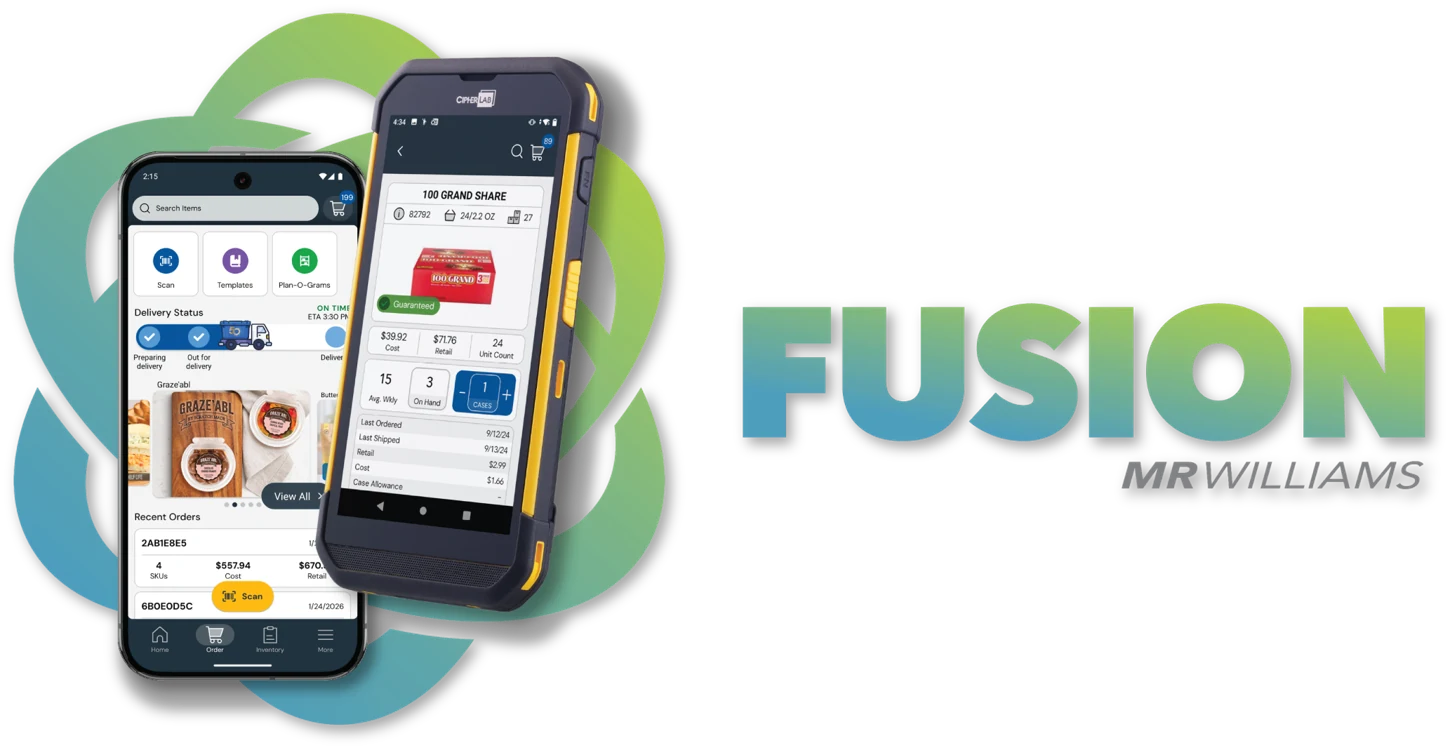
 iPhone + Android
 Available on rugged hardware we manage and as BYOD download.
 Built for the sales floor
01 / Meet Fusion
Less friction.
More store potential.
Keep the right products moving, put better information at the shelf, and give your team more control over the day.
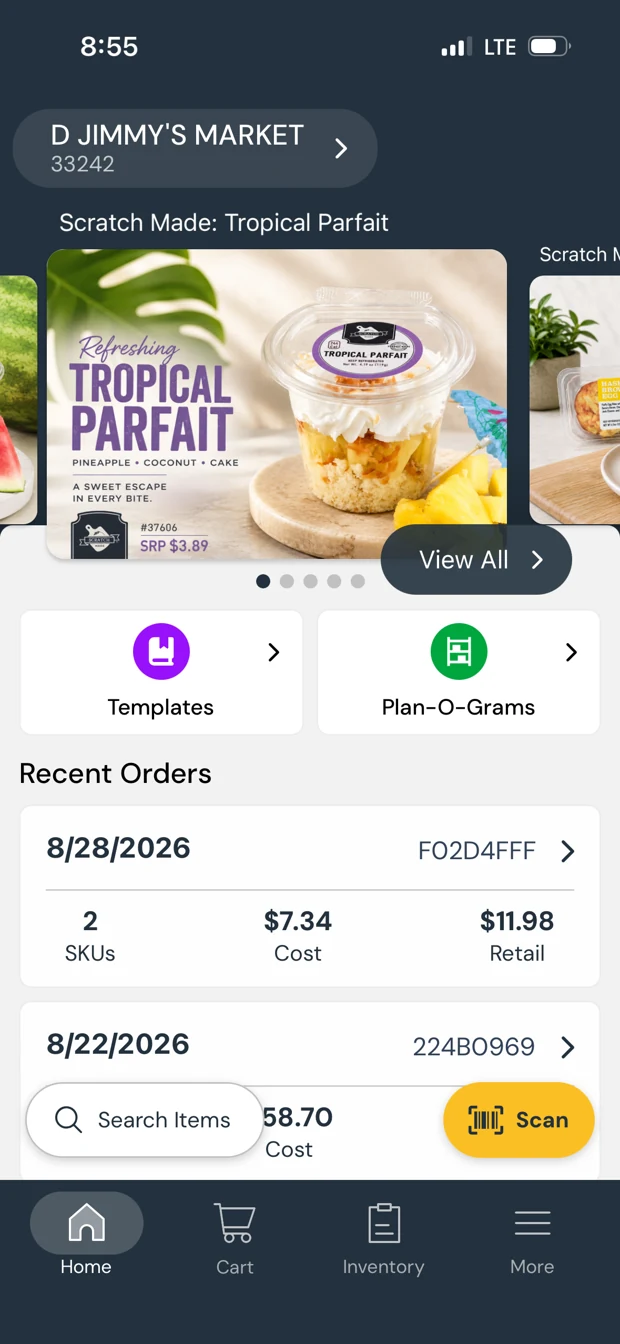
A better order starts here.

Find the right products.
Search the catalog to discover items and find alternatives for out-of-stock or slow-moving products.

Bring new opportunities to the shelf.
Explore new items and deals to support faster introductions and stronger margin opportunities.

See more. Stay in control.
Give leaders real-time order visibility and the ability to tailor ordering behavior.
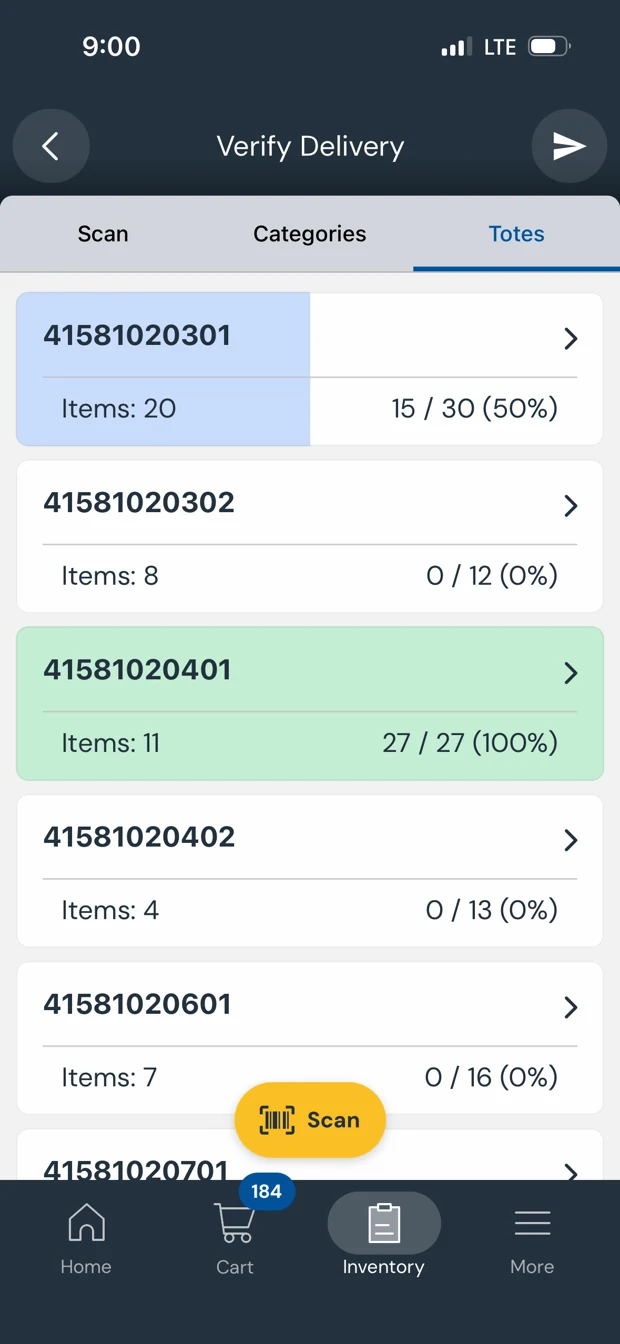
Make delivery day work for you.

Plan around your delivery.
Truck tracking helps your team coordinate staffing and schedules around incoming deliveries.

Know what actually arrived.
Validate delivered items against the invoice, track progress, and submit a verification report for tighter inventory control.
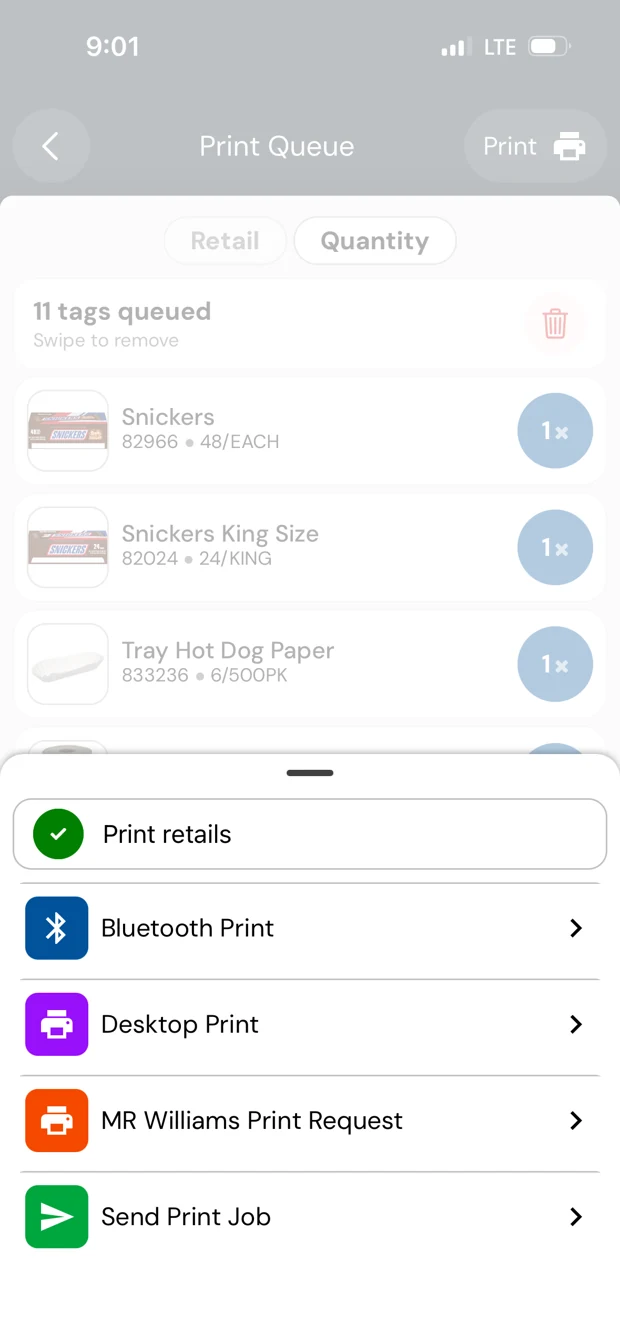
Stay ready at the shelf.

Put the right retail on the shelf.
Create and print shelf tags so product information and retails stay aligned where customers shop.

Keep credits moving.
Self-issued credits help eligible retailers receive credit sooner and reduce backroom clutter. Ask your MR Williams representative about access and the applicable process.
Tools and permissions depend on your account and store configuration.
Your phone. Your store. Your Fusion.
Ready when you are.
Download Fusion BYOD for free. Sign in with your MR Williams credentials.
Need credentials? Request access

02 / Make Fusion work for you
A little guidance.
A lot more confidence.
Your everyday Fusion tasks, explained step by step. Open a topic to get started, and enlarge the product screens for a closer look.
01Get started
Sign in and choose your storeGet into the right workspace.
- Open Fusion and enter the credentials provided by your MR Williams representative.
- Complete the initial sync to load store, product, pricing, and ordering information.
- If your credentials link to more than one store, select the store you want to manage. With one linked store, you go straight to Home.
Need credentials? Use the support and access request form below.
Sync product and pricing informationKeep your store information current.
- Use a stable internet connection and watch for sync prompts when opening Fusion.
- Complete a sync before a major ordering session or whenever product or pricing information looks stale.
- To refresh manually, open the More Menu and force a sync.
Fusion requires a sync every 72 hours unless sync bypass is enabled. Bypass can leave pricing and product information outdated and prevent newly added items from appearing. Use it only when your store is configured for it and you understand the tradeoff.
02Build an order
Find your way around HomeChoose the ordering method that fits the job.
- Use Search or Scan to find individual items, Templates for recurring groups, and Plan-o-grams for curated item sets.
- Open Recent Orders to reuse a previous order, or browse the promotions carousel.
- Move between Home and the Cart without losing your place in Home.
On MR Williams managed hardware, use the side trigger to scan. These devices do not show an on-screen Scan button.
Search the catalogFind products by description, category, or subcategory.
- Tap Search Items at the top of Home / Order Hub.
- Enter part of an item description or choose a category. Use the category down arrow for subcategories.
- Add quantities from the results list. Use the inverted-pyramid filter icon to sort or narrow results.
- Tap an item to open Item Detail and review its complete information.
Repeat the same search often? Swipe left on an item to add it to a template for next time.
Scan items and set quantitiesBuild your order as you walk the store.
- Scan a shelf tag or product barcode to open the matching Item Detail screen.
- Scan the same item repeatedly in quick succession to increase its order quantity.
- Use the plus and minus controls to adjust the quantity, or tap Order Quantity to enter a larger number with the keypad.
- Check the item details and quantity before moving on.
Scanning may default to 0, 1, or the suggested order quantity, depending on store configuration. Authorized users can change this through More → Store Configuration.
Create and reuse templatesMake repeat orders easier to build.
- Open Templates from Home / Order Hub and tap + New.
- Give the template a recognizable name.
- Open it and tap + to add items by scanning or searching.
- Back out of the edit screen to save the template and use it for ordering.
- Swipe left on a template card to reveal Edit and Delete.
A bunker freezer template is useful for frequently ordered products that are hard to reach or scan in sequence.
Order from plan-o-gramsUse curated item sets to build out a section.
- Open Plan-o-grams from Home / Order Hub.
- Choose the plan-o-gram for the section you are working on and review its recommended items.
- For additional ideas, review a nearby or larger option—for example, an 8 ft Candy/Gum layout when filling a 6 ft section.
- Add the appropriate items and review them in your cart.
On a closed catalog, only authorized items are orderable. Depending on device configuration, other items may be visible, but they must be authorized before you can order them.
Restore a recent orderStart with a previous order, then make it yours.
- Tap a Recent Order from Home / Order Hub and review the items and prior quantities.
- Tap Add All to bring those items and quantities into your cart when a repeat order makes sense.
- Use the wand button for other options, including blanking quantities to turn the previous item list into a template.
- Review the cart to make sure quantities fit today's needs.
Reusing an order is a starting point. Always check the intended items and quantities before submitting.
View and book promotionsReview offers and transmit each promotion separately.
- Tap View All on the promotions carousel above Recent Orders.
- Select a promotion and, if authorized, tap + at the bottom-right of its main image.
- Follow the promotion's rules: some require a bundle; others allow item-level additions using the individual + buttons.
- Transmit that promotion before moving to another promotion or returning to your regular order.
Promotions do not go into the regular cart. Book and transmit each one separately. With a closed catalog, you may only be able to view promotions; an authorized person must complete the booking.
03Review & submit
Review and submit your orderCheck the details, then send with confidence.
- Tap the cart icon in the top-right corner to review your order.
- Check the order total and category subtotals. Tap a category to view its items.
- Adjust quantities or remove items as needed.
- Tap the airplane icon in the top-right corner when ready.
- Review the confirmation screen, tap Submit, and confirm that Fusion displays the expected submission confirmation.
If submission fails, the quick start guide says you can try submitting again without creating duplicate orders. For a time-sensitive ordering issue, contact your Territory Sales Manager.
04Inventory & delivery
Use the Inventory HubFind receiving and shelf tag tools.
- Open Inventory to access Verify Delivery and Shelf Tags.
- Use Verify Delivery to check delivered items against invoices and track progress across totes and categories.
- Use Shelf Tags to create a list and print or transmit tags.
- If you have more than three tool buttons, slide them left to see the others.
The September 2026 guide lists Verify Delivery and Shelf Tags as available to all customers. Other Inventory tools may vary by account.
Verify a deliveryCheck what arrived against the invoice.
- On delivery day, open Inventory → Verify Delivery and choose the delivery invoice.
- Open a tote. Scan items or check them off manually as you verify them.
- For higher quantities, tap the expected delivered value to fill the verified value with that amount.
- Continue until progress is complete across totes and categories.
- Submit the Delivery Verification to create a report for your decision makers.
A verification report does not issue a credit. If there is a variance from the invoice, you must still use the call-in credit process.
Create and print shelf tagsGet the right information onto the shelf.
- Open Inventory → Shelf Tags.
- Build a tag list by scanning or searching, then review it for accuracy.
- Choose whether to include retails.
- Print to a compatible desktop laser printer with custom label stock, print by Bluetooth to a compatible 4-inch Zebra printer, transmit to MR Williams for your next delivery, or send to another linked store with a compatible printer.
Most Wi-Fi laser printers are compatible. MR Williams custom 8.5 × 11 label stock is item #90159. Output options depend on your store setup.
05Settings & support
Switch stores and use the More MenuManage your workspace and find support details.
- Open More to switch between stores linked to your credentials or look up items outside the order-building flow.
- Force a sync when you need to refresh product, pricing, and ordering information.
- Submit application feedback or adjust settings if your credentials allow it.
- Find the Fusion version number at the bottom of the screen and have it ready when requesting technical support.
Configuration options, including ordering behavior, depend on your permissions.
Try these quick fixesResolve common product, pricing, and scanning questions.
- Can't find an item? Force a sync from More, then search again. Sync bypass can leave your product information stale.
- Price looks wrong? Complete a sync and confirm that your device has a stable internet connection.
- Scan quantity looks unexpected? Check Store Configuration if you are authorized to change it.
- Still need help? Share your store or account information and the Fusion version number from the bottom of More.
For time-sensitive ordering problems, contact your Territory Sales Manager. For other requests, use the form below and allow up to 48 hours for a response.
We're here to help
Real support.
From your MR Williams team.
Request credentials, ask a product question, or share feedback. Have your store or account details and Fusion version number ready.
Contact your Territory Sales Manager for immediate assistance. For all other requests, use the form below and allow up to 48 hours for a response.